
Background Execution of Project Process Tasks
The task queue allows project operations to be completed as background tasks, so they don't interfere with other operations in the interface while also enabling batch execution across multiple projects, improving user efficiency.
Figure:Creating a background task
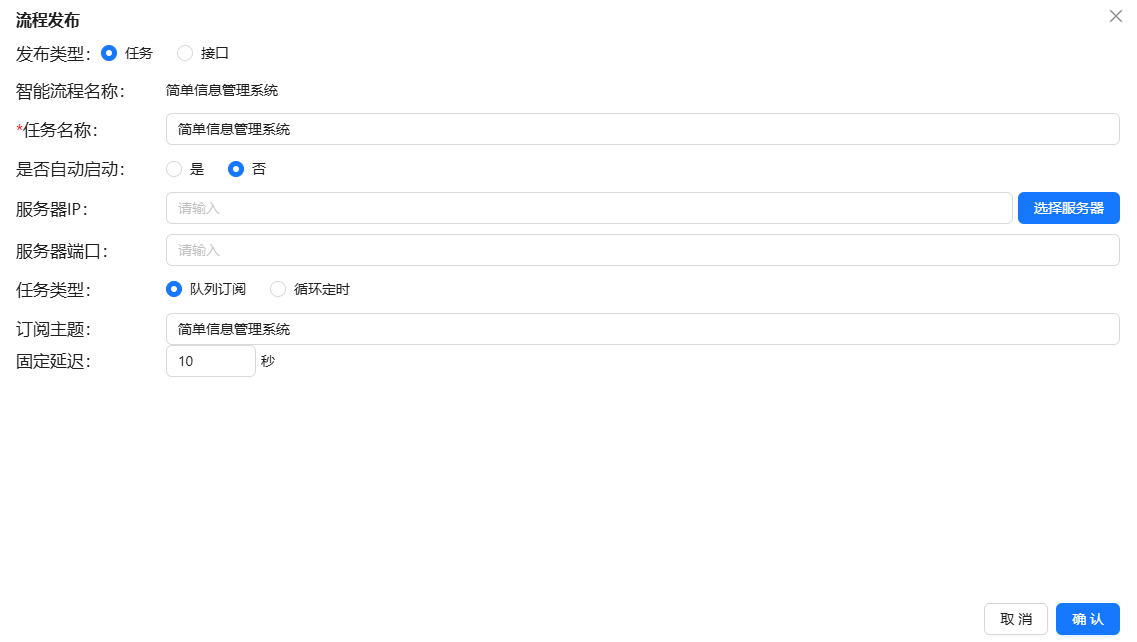
Task Publishing
Orchestrated processes can be published as tasks to run in background mode. There are two running modes:
Queue Subscription Mode
Queue subscription operates by publishing to topics. When a project is added to a queue, it must also select the corresponding topic for publishing.
- Queue-subscribed tasks scan the queue every 10 seconds
- When a new project enters the queue, execution begins
- After execution completes, scanning continues at a fixed delay
Applicable Scenarios: Multiple projects need to be processed sequentially, executing automatically in the order they were added.
Recurring Timer Mode
Recurring timer mode executes at a fixed frequency, regardless of whether a task has finished executing.
Applicable Scenarios: Periodic statistical reports, scheduled data synchronization, and other recurring tasks.
Task Viewing
In the upper right corner of the system, there is a task queue button that displays the number of queues currently executing in the background. Click the button to see the execution status of published tasks.
Figure:Task Queue View

Task Management
The process task tab includes management functions for process tasks:
- Start/Stop — Start and stop published tasks
- Delete Task — Delete published tasks
- Task Logs — Record process execution details for troubleshooting
- Task Queue — View the queuing status of all tasks in the current system
Usage Scenario Examples
Notes
- Background task execution does not affect normal operations
- Queue subscription mode is suitable for serial execution tasks
- Recurring timer mode is suitable for periodic execution tasks
- Use task logs to troubleshoot execution anomalies